
If your team runs on Microsoft Teams, you’ve probably already realized that Teams doesn’t come with a leave management system built in.
There’s no “request time off” button. No leave balance tracker. No automatic approval routing. What Teams does have is a powerful enough set of native tools — shared calendars, dedicated channels, and Power Automate — that a motivated HR admin can stitch together a workable leave management in Microsoft Teams setup without installing anything new.
This guide walks through exactly how to do that. Then it covers where the manual approach starts to strain, and how teams that have outgrown spreadsheet-and-channel tracking move to something more automated — without leaving Teams.
Leave management in Microsoft Teams refers to the process of submitting, approving, and tracking employee time off directly inside the Teams workspace — either using Teams’ native features like calendar sharing, channel posts, and Power Automate flows, or through a Teams-native bot like AttendanceBot that automates the entire leave lifecycle. For teams already using Microsoft Teams as their primary collaboration hub, managing leave inside Teams reduces context switching, improves adoption, and keeps absence records accurate without a separate HR portal. As Microsoft Teams has become the primary workspace for many organizations, employees increasingly expect everyday HR processes—including leave requests and approvals—to happen inside the tools they already use.
TL;DR: Microsoft Teams doesn’t have a built-in leave management system, but you can set one up manually using shared calendars, dedicated channels, and Power Automate. For teams that want approval routing, balance tracking, and payroll-ready reports without building and maintaining their own workflow, AttendanceBot automates the entire process natively inside Teams.
What Microsoft Teams Natively Offers for Leave Management
Before reaching for any third-party tool, it’s worth understanding what Teams actually provides out of the box. The answer is more than most people realize — and for a small team with simple needs, it may be enough.
Shared Team Calendars
Teams integrates directly with Outlook calendars. When an employee’s out-of-office is set in Outlook, it syncs to their Teams status automatically — showing colleagues they’re away without any additional setup. For managers who need a bird’s-eye view of team availability, a shared Outlook calendar in a Teams channel provides visibility into who’s off and when.
This works well for very small teams where leave is infrequent and informal. The limitation: it requires employees to remember to update their Outlook calendar, which they won’t always do.
Dedicated Leave Channels
One of the simplest ways to centralize leave management in Microsoft Teams is by creating a dedicated channel — #time-off-requests or #leave-requests — where employees post their requests as messages and managers reply with approvals.
The setup takes five minutes. The channel gives HR a visible, searchable record of who requested what and when. Managers can use the thumbs-up reaction as a quick approval signal or reply with a formal confirmation.
The limitation: this is entirely manual. Nothing routes automatically. Nothing updates a balance. Nothing feeds into payroll. Someone has to read every message and maintain a separate record.
Power Automate for Approval Workflows
For teams with a bit of technical confidence, Microsoft Power Automate is the most powerful native option for automating leave approval workflows inside Teams. You can build a flow that:
- Triggers when an employee submits a form via Microsoft Forms
- Routes the request to the designated approver via Teams notification
- Sends an approval or rejection message back to the employee automatically
- Logs the outcome in a SharePoint list or Excel spreadsheet
This is genuinely capable automation for teams already in the Microsoft 365 ecosystem. The tradeoff is build time and maintenance. Creating a robust Power Automate flow for leave management takes several hours — and every time your team’s leave policy changes, someone has to update the flow.
Outlook Out-of-Office Integration
When employees set an out-of-office reply in Outlook before taking leave, their Teams status reflects this automatically. This gives colleagues passive visibility into absences without any dedicated leave system.
It’s a useful signal layer but not a management tool. It shows when someone is away — it doesn’t track why, for how long, what type of leave it is, or what balance they have remaining.

Where the Manual Approach Starts to Break Down
The native Teams setup described above works well for teams of five to ten people with simple leave needs. As the team grows, a few specific pain points emerge consistently.
Nobody Tracks Leave Balances
A channel-based request system tells you who asked for time off and whether it was approved. It doesn’t tell you how many days they’ve taken this year, how many they have left, or whether they’re about to exceed their annual entitlement.
For an HR admin at a 30-person company, manually maintaining leave balances in a spreadsheet alongside the Teams channel is technically doable — and genuinely time-consuming. A single payroll cycle requiring leave data means reconciling channel messages, Outlook calendars, and a spreadsheet that’s probably a few updates behind. The real cost of these timesheet and leave tracking errors adds up faster than most teams expect.
Approval Chains Break Under Load
When one manager is approving leave for a team of twenty and also attending back-to-back meetings, the Teams channel messages get buried. Requests that arrived Monday morning might not get a response until Thursday. Employees who needed to book flights are left waiting. The time off request process that works informally for a small team becomes a bottleneck as headcount grows.
Different Leave Types Need Different Rules
Annual leave, sick leave, parental leave, TOIL, floating holidays, and bereavement — each type has different accrual rules, approval requirements, and payroll implications. A channel-based system handles all of these identically, which means the admin work of distinguishing between them falls entirely on whoever manages the record manually. Our guide to types of leave and leave policies covers the full range of leave categories most teams need to track.
No Payroll-Ready Output
At the end of the month, payroll needs accurate leave data — who took what, when, and of which type. A Teams channel gives you a text record. Turning that into a clean, structured payroll input requires manual extraction and formatting that no busy finance or HR team wants to be doing under deadline pressure.
What Actually Happens When Teams Grow Beyond Spreadsheet-Based Leave Tracking
After supporting thousands of leave requests across Slack and Microsoft Teams environments, one pattern appears consistently: manual leave tracking rarely breaks because the process is impossible. It breaks because it becomes invisible work.
At ten employees, an HR administrator can usually reconcile leave requests from a Teams channel and maintain a spreadsheet without significant effort. At twenty-five employees, the same process often requires checking multiple sources, including Outlook calendars, Teams conversations, spreadsheets, and payroll records.
The most common issues teams report are:
- Approved leave not reflected in leave balances
- Overlapping absences discovered too late
- Managers missing requests buried in Teams notifications
- Payroll corrections caused by inaccurate leave records
- Employees asking HR for balance information that should be self-service
For organizations growing beyond a small team, the challenge is rarely collecting leave requests. The challenge is maintaining accurate records as request volume increases.
The Manual Setup: Step-by-Step
For teams that want to build the native Teams leave management system before committing to a dedicated tool, here’s the most practical configuration.
Step 1 — Create a dedicated #leave-requests channel. Pin a message at the top explaining the submission format: name, dates, leave type, and reason if required.
Step 2 — Build a Microsoft Form for structured submissions. Include fields for employee name, start and end date, leave type, and any supporting notes. Link the form in the channel description so employees always know where to go.
Step 3 — Build a Power Automate flow that triggers on form submission, routes an approval request to the manager in Teams, and logs approved requests to a SharePoint list. Microsoft’s Power Automate approval templates include a pre-built leave approval flow you can adapt.
Step 4 — Maintain a shared leave balance tracker in Excel or SharePoint, updated whenever a leave request is approved. Assign one person to own this — and accept that it will occasionally be out of sync.
Step 5 — Sync approved leave to Outlook calendars manually or via an additional Power Automate step, so team availability is visible across Teams.
This setup works. It takes several hours to build and requires ongoing maintenance. For teams with a dedicated HR or ops resource willing to own it, it’s a reasonable short-term solution. For teams where HR is one person wearing many hats, the maintenance overhead adds up quickly.
When Teams Needs a Little Help
Teams administrators often discover that the biggest cost of manual leave management is not software. It’s the time spent reconciling spreadsheets, responding to balance inquiries, and correcting leave records before payroll processing.
The shift from manual to automated leave management in Microsoft Teams doesn’t require leaving the Teams environment. It just requires a tool built to run inside it.
One pattern that frequently emerges among growing organizations is that leave management becomes a problem long before HR leaders expect it to. Teams often begin with calendars and spreadsheets, then introduce approval workflows, and eventually look for automation once managers spend more time administering leave than approving it.
AttendanceBot works natively inside Microsoft Teams — no separate portal, no additional login, no workflow to build and maintain. Employees request time off by sending a message to the AttendanceBot in Teams. The request is automatically routed to the correct approver, the employee’s leave balance is checked in real time, and the approval or rejection is sent back inside Teams.
Everything that the manual setup requires a human to maintain — balance tracking, approval routing, leave type categorization, payroll export — happens automatically.
What AttendanceBot Handles Inside Teams
Leave requests and approvals
Employees submit requests through a Teams message. Managers approve with a single click. No channel message to track, no form to fill in separately.
Real-time leave balance tracking
Employees can check their remaining leave balance directly in Teams at any time without contacting HR. This alone eliminates a significant volume of HR admin queries. Our breakdown of employee self-service covers why this matters for growing teams.
Multiple leave types with separate rules
Annual leave, sick leave, TOIL, parental leave, floating holidays, and bereavement leave can all be configured with different accrual rates, approval chains, and carryover rules. See how TOIL tracking specifically works in practice.
Payroll-ready leave reports
Instead of manually extracting data from a SharePoint list, HR teams generate structured leave reports in one click — by employee, leave type, time period, or team.
Hybrid work visibility
For teams splitting time between office and remote, AttendanceBot tracks not just who’s on leave but who’s working from home, who’s in the office, and who’s available — all visible inside Teams without a separate tool. Read more about Microsoft Teams time tracking and how it complements leave management.
The leave management system that used to require a spreadsheet, a channel, and a Power Automate flow — plus someone to maintain all three — is replaced by a single bot that handles everything inside the workspace your team already uses.
Why Teams Users Choose AttendanceBot Instead of Building Their Own Workflow
Organizations typically evaluate three approaches when managing leave inside Microsoft Teams:
- Manual channels and spreadsheets
- Power Automate workflows
- Dedicated leave management software
Manual systems have minimal setup costs but create increasing administrative work as organizations grow.
Power Automate offers flexibility but requires ongoing maintenance whenever policies, approval chains, or leave categories change.
Dedicated solutions such as AttendanceBot provide leave management, balance tracking, approvals, reporting, and policy enforcement without requiring custom workflow development.
Manual vs Automated Leave Management in Teams
| Manual (Native Teams) | Automated (AttendanceBot in Teams) | |
| Setup time | Several hours to build | Minutes to configure |
| Leave balance tracking | Manual spreadsheet | Automatic, real-time |
| Approval routing | Manual or Power Automate build | Automatic, configurable |
| Multiple leave types | Manual differentiation | Fully configurable per type |
| Payroll export | Manual extraction | One-click structured report |
| Employee self-service | Not available | Leave balance check in Teams |
| Maintenance overhead | High — ongoing | Minimal |
| Scales beyond 20 people | Strains significantly | Yes |
Common Mistakes When Managing Leave in Microsoft Teams
Relying entirely on Outlook calendar updates. Employees forget to update their Outlook status, which means team availability data is always partially inaccurate. A system that captures leave at the request stage — not the departure stage — produces cleaner data.
Using a channel without a form. Free-text leave requests submitted to a Teams channel arrive in inconsistent formats, missing information, and requiring HR to follow up for clarification. A structured form or bot interaction captures everything needed at submission.
Not defining a single owner for leave records. In the absence of automation, someone has to maintain the leave tracker. If that person isn’t explicitly assigned, records drift out of sync and the first payroll cycle that reveals the gap is an uncomfortable one.
Ignoring leave policy compliance. Managing leave informally is fine until FMLA requirements, state sick leave mandates, or work schedule laws require documented records. A Teams channel message doesn’t constitute a compliance-grade audit trail.
Not communicating the process to employees. The best leave management setup in Teams fails if employees don’t know how to use it. Pin the process clearly, reference it in onboarding, and make sure managers apply it consistently from day one.
Example: A Leave Request Workflow Inside Microsoft Teams
To understand the difference between a manual and automated approach, consider a common scenario.
An employee needs three days of annual leave next month.
With a manual Teams process:
- The employee submits a request through a channel or Microsoft Form.
- The manager reviews and approves it.
- Someone updates the leave spreadsheet.
- Someone verifies the employee’s remaining balance.
- Someone ensures payroll records are updated.
- Team calendars may need updating separately.
With AttendanceBot inside Microsoft Teams:
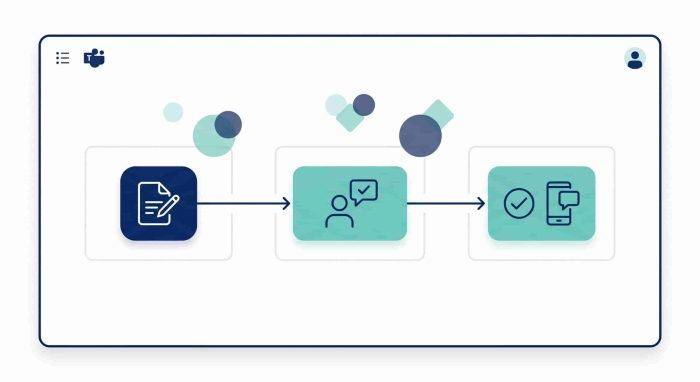
- The employee submits a leave request directly in Teams.
- AttendanceBot checks the employee’s available balance automatically.
- The request is routed to the correct approver.
- The balance updates immediately after approval.
- Team visibility updates automatically.
- The leave record becomes available for reporting and payroll export.
The workflow remains entirely inside Microsoft Teams, reducing manual administration while giving employees and managers a consistent process.
FAQ
Can You Manage Employee Leave Directly in Microsoft Teams?
Yes — but not with a built-in leave management feature. Microsoft Teams supports leave management in Microsoft Teams through a combination of native tools: shared Outlook calendars, dedicated request channels, Microsoft Forms for structured submissions, and Power Automate for approval routing. For full automation, including balance tracking and payroll exports, a Teams-native tool like AttendanceBot handles the entire process inside Teams without any manual workflow maintenance.
Does Microsoft Teams Have a Built-In Leave Tracker?
No. Microsoft Teams does not include a dedicated leave tracking or PTO management feature. Leave visibility comes through Outlook calendar integration and Teams status updates — both of which require employees to manually update their status. For structured leave tracking with balance management, approval workflows, and reporting, teams typically use either a custom Power Automate setup or a purpose-built Teams app.
How Do You Automate Leave Requests in Microsoft Teams?
The two main approaches are Power Automate and a Teams-native leave management bot. Power Automate allows you to build custom approval flows triggered by Microsoft Forms submissions — powerful but requires build time and ongoing maintenance. AttendanceBot provides the same functionality out of the box inside Teams — employees request leave via a message, managers approve with one click, and balances update automatically — without any flow to build or maintain.
What Is the Best Leave Management Tool for Microsoft Teams?
For teams that want leave management to run entirely inside Microsoft Teams without a separate portal, AttendanceBot is purpose-built for this workflow. It handles leave requests and approvals, balance tracking, multiple leave types, and payroll-ready exports natively inside Teams. For teams comparing options, our best leave management software roundup covers the full landscape.
How Do You Track Employee Leave Balances in Teams?
With the native Teams setup, leave balances must be tracked manually in a separate spreadsheet or SharePoint list and updated whenever a request is approved. With AttendanceBot inside Teams, employees can check their own leave balance by sending a message to the bot — and HR sees real-time balance data for the whole team without any manual updating. The PTO software guide explains what to look for in automated balance tracking tools.
Is It Worth Setting Up Power Automate for Leave Management?
For teams with a technical resource available and a stable leave policy, yes — Power Automate can produce a solid approval workflow that saves significant manual effort. The honest tradeoff is build time and maintenance. Every policy change requires updating the flow. For teams without a dedicated technical resource, or those whose leave policies evolve frequently, a pre-built Teams-native solution like AttendanceBot typically delivers better ROI faster without the ongoing maintenance overhead.
Leave Management That Fits Where Your Team Already Works
Leave management in Microsoft Teams works best when it lives where your team already communicates — not in a separate portal that employees have to remember to visit.
The manual setup described in this guide is a genuine starting point for small teams. It’s free, requires no new tools, and can be operational in an afternoon. The moment the team grows past fifteen or twenty people, or leave types become more complex, the manual overhead compounds quickly.
The teams that spend the least time on leave administration in 2026 are the ones that automated it early — not because automation is complicated, but because the alternative keeps demanding more time as headcount grows.
If your team runs on Microsoft Teams and you’re ready to move beyond the manual setup, see how AttendanceBot lets employees request leave, managers approve requests, and HR track balances directly inside Microsoft Teams—without spreadsheets, Power Automate maintenance, or separate HR portals.