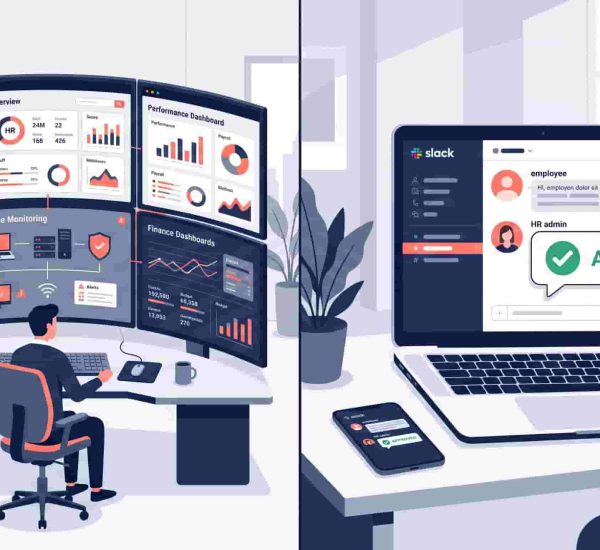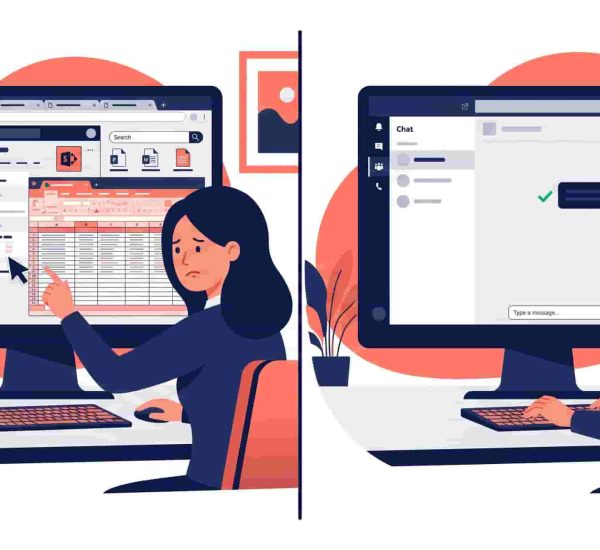
Time tracking fails when it lives somewhere employees don’t. For teams running on Microsoft Teams, asking people to open a separate time tracking portal adds friction that kills adoption fast — and incomplete records create payroll compliance problems on a predictable cycle.
The good news is that Microsoft Teams time tracking can live entirely inside Teams. In 2026, Microsoft added native clock-in/out functionality through the Shifts app — a solid starting point for shift-based teams. For teams that need automated timesheets, billable hour tracking, PTO management, and payroll-ready exports in the same place, AttendanceBot extends Teams into a complete employee time tracking environment without any additional platforms.
Here’s everything you need to know about how it works.
Can Microsoft Teams track time?
Microsoft Teams now includes the Shifts app which provides basic clock-in/out and shift scheduling natively inside Teams. For teams that need more — automated timesheets, project-based time logging, PTO management, and payroll exports — apps like AttendanceBot add the full time tracking workflow inside Teams through simple chat commands. Employees typeto clock in andto clock out, timesheets compile automatically, and payroll exports are available on demand without leaving the Teams workspace.
What is Time Tracking?
Time tracking is the process of recording the time spent by employees at work, approving timesheets, and providing this data for payroll. This data can be segmented to include time spent by employees on different projects and clients for client-wise billing.
The process of time tracking includes:
- Punching in and out: Tracking the time spent on projects, clients, or just at work — self-reported by the employee or auto-tracked through software
- Approvals: The punches of individual employees are analyzed and approved by their manager periodically for payroll
- Timesheet Reports: Approved timesheets are sent for payroll processing
What is Microsoft Teams Time Tracking?
Microsoft Teams has already made strides in analyzing employee productivity. Microsoft Teams time tracking is the next logical step — bringing clock-in/out, timesheet management, and workforce visibility into the same workspace where your team already communicates.
Microsoft Teams time trackers are applications added from the Apps section to integrate into your workspace. With these you can:
- Create punches
- Add breaks
- Segment time spent project-wise for billable hours tracking
- Approve timesheets
- Pull up timesheet reports
- Monitor employee productivity
For hybrid teams splitting time between office and remote, having time tracking inside Teams means consistent data quality regardless of where employees are working.
Time Tracking in Microsoft Teams With AttendanceBot
With AttendanceBot, Microsoft Teams time tracking is simple, non-intrusive, and intuitive for employees — while being information-rich for employers. It pairs attendance tracking,
What is Time Tracking?
Time tracking is the process of recording the time spent by employees at work, approving timesheets, and providing this data for payroll. This data can be segmented to include time spent by employees on different projects and clients for client-wise billing.
The process of time tracking includes:
- Punching in and out: Tracking the time spent on projects, clients, or just at work
- Self-reported by the employee
- Auto-tracked through software
- Approvals: The punches of individual employees are analyzed and approved by their manager periodically for payroll
- Timesheet Reports: Approved timesheets are sent for payroll
What is Microsoft Teams Time Tracking?
Microsoft Teams has already made strides in analyzing employee productivity with Microsoft Viva. It makes sense that time tracking with Microsoft Teams is the next logical step.
So what does this entail?
Microsoft Teams time trackers are applications that can be added from the Apps section to integrate into your workspace. With these you can:
- Create punches
- Add breaks
- Segment time spent project wise
- Approve timesheets
- Pull up timesheet reports
- Monitor employee productivity
Time Tracking in Microsoft Teams
We don’t like to toot our own horn, but with AttendanceBot, Microsoft Teams’ time tracking is simple, non-intrusive, and intuitive for employees. While also being information-rich and robust for employers.
So how can you monitor employees on MS Teams with AttendanceBot? Let’s find out.
How to Add AttendanceBot to Your Workspace?
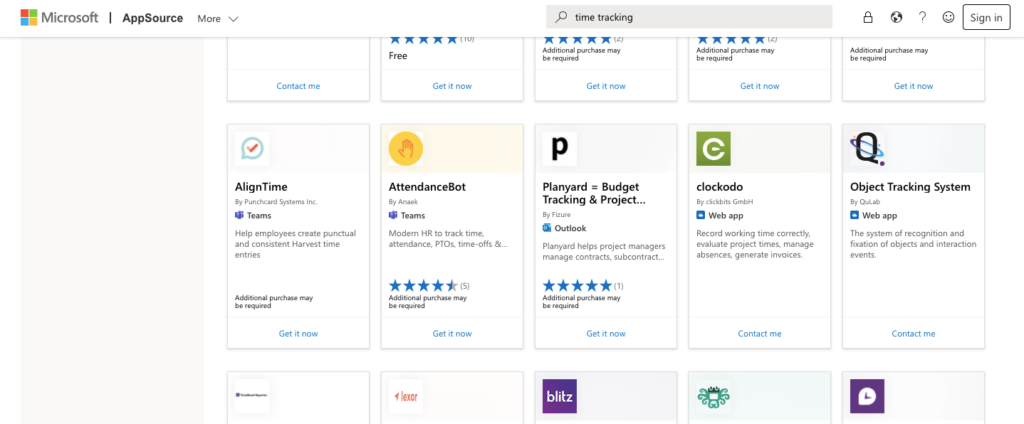
You can add AttendanceBot to your workspace by searching for it in the Apps section of MS Teams. It is listed under the Productivity and Human Resource section.
How to Track Time in MS Teams?
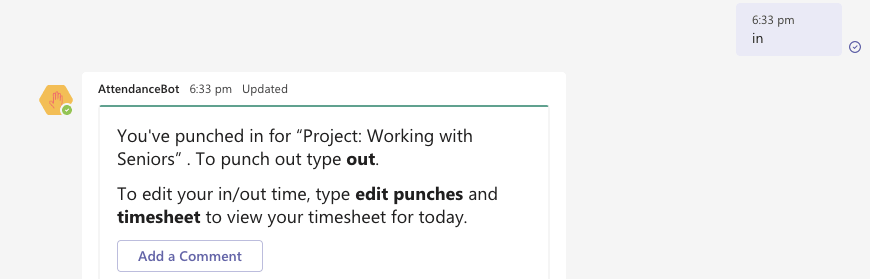
- When you are starting work, simply type and send “in” to AttendanceBot. It will clock you in for the day.
- When you want to click out, simply type and send “out”.
How to Track Breaks on MS Teams?
- To apply for a break in AttendanceBot, just type and send “break for x mins” or “brb in x mins”.
- You can then clock back in after that time by sending “in” once more.
In case your administrator has set up any scheduled breaks like a 30-minute lunch break under “lunch” or a 10-minute snack under “snacks”, you can just send those phrases without the duration mentioned.
The lunch duration can be set from your Settings Panel. You can refer to this article for the process of setting up lunch hours.
How to Track Time on MS Teams by Project?
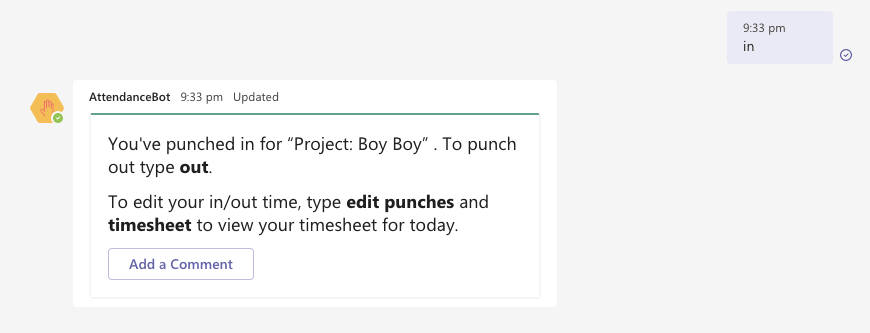
- When you are starting with your work, simply clock in by typing the command “in” into the AttendanceBot. If you have been assigned projects, AttendanceBot will give you a drop-down to select one.
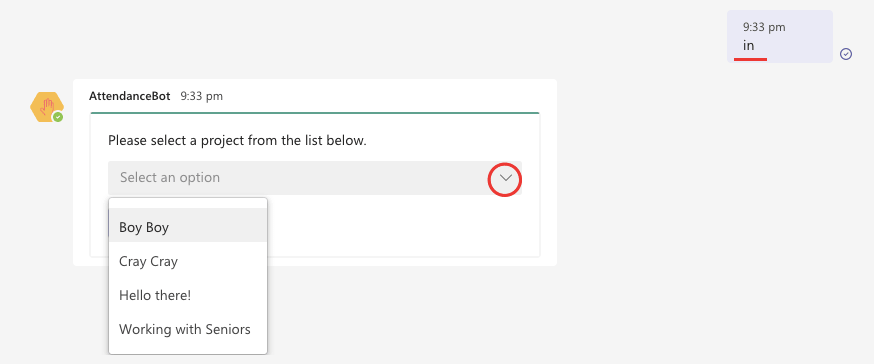
- Hit “OK” to confirm the punch and you will notice that the prompt by AttendanceBot will update
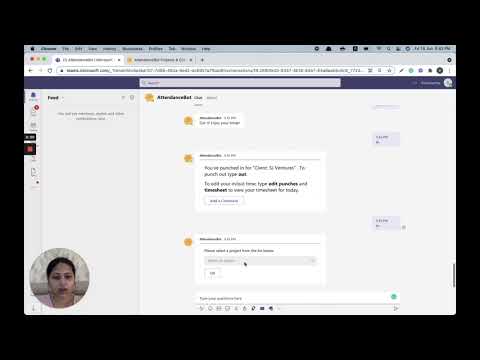
- If you wish to switch to another project, simply type in the command “Out” to clock out from the current project.
- Rinse and repeat to choose another project.
How to View Real-Time Punch Statuses of the Team?
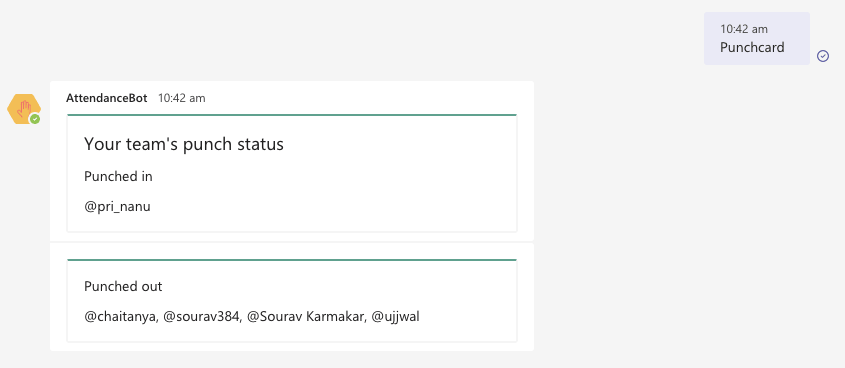
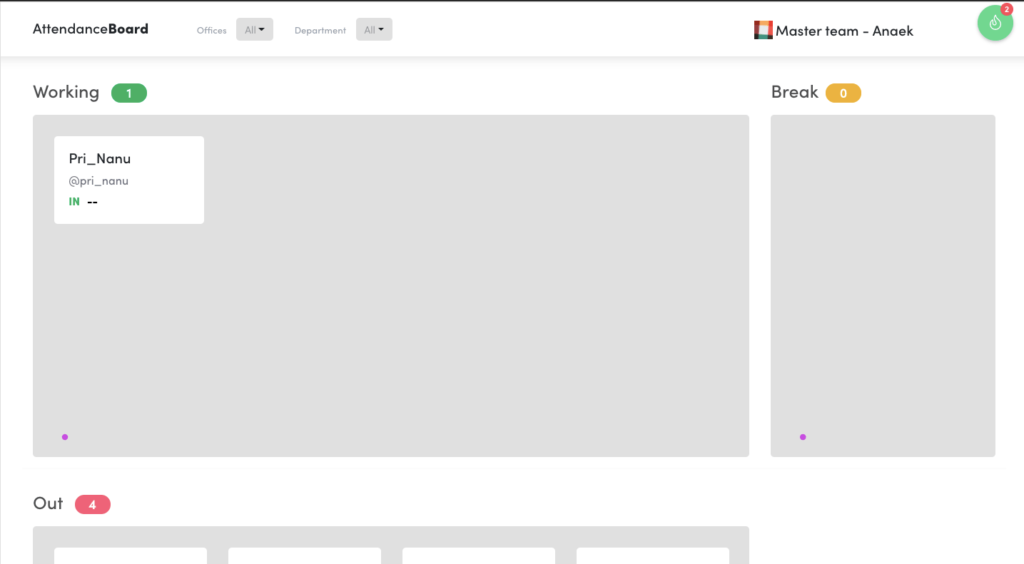
To view the list of people currently punched in or out, simply type ‘punch card’. It is a real-time view of your team’s punch status.
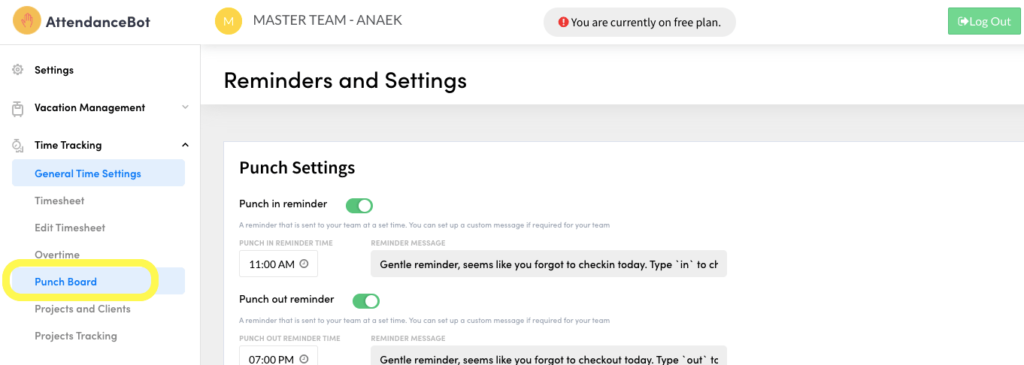
Alternatively, managers can head to the AttendanceBot Dashboard and enter the Punch Board to see the status of their employees.
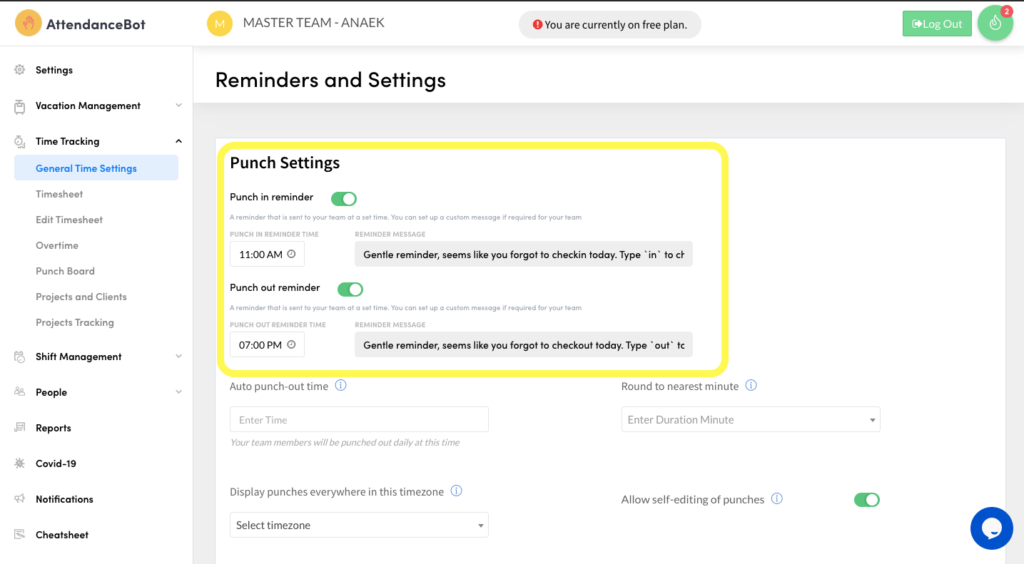
How Do I Send Punch Reminders to Employees?
Often, employees can forget to punch in and out during the day. Sending timesheet reminders can be a task.
With AttendanceBot, you can specify times for punch in and out reminders. The reminders will go out to workspace members in their local time.
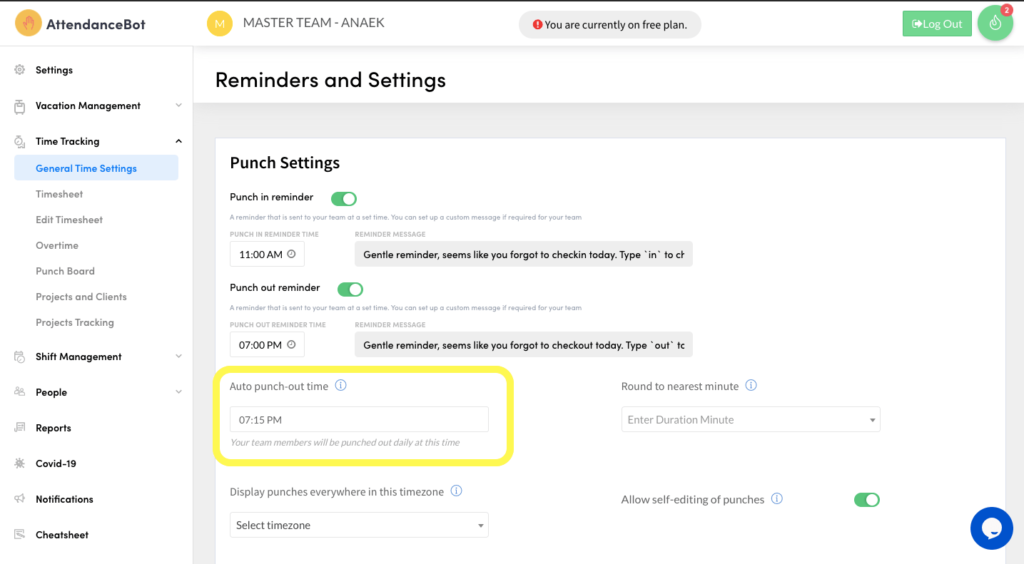
Sometimes, reminders can also be ineffective. In that case, you can opt to auto-punch out employees to prevent overtime issues further down the line.
Frequently Asked Questions
Does Microsoft Teams Have Built-In Time Tracking?
Microsoft Teams includes the Shifts app which provides basic clock-in/out functionality and shift scheduling natively inside Teams. However, Shifts does not generate automated timesheets, support payroll exports, or handle billable hour tracking by project. For full Microsoft Teams time tracking — timesheets, payroll exports, PTO management, and project-based logging — teams add a dedicated app like AttendanceBot from the Teams app store.
How Do Employees Clock In and Out in Teams?
With AttendanceBot installed in Microsoft Teams, employees clock in by typing in a chat message and clock out by typing . Break tracking uses . Project-based logging presents a dropdown at clock-in to select the active project. Everything happens inside Teams chat — no separate app or portal required. Managers can view real-time punch status for the whole team by typing in Teams.
Can Teams Generate Timesheets?
The native Microsoft Teams Shifts app does not generate automated timesheets. AttendanceBot compiles automated timesheets from every clock-in and clock-out record — available as on-demand Excel exports, scheduled email deliveries, or structured exports for payroll platforms. Timesheet data includes hours worked, breaks taken, overtime, project time, and approved leave — providing everything payroll needs in a single structured report.
Is Time Tracking in Teams Free?
Microsoft Teams Shifts is included with Microsoft 365 subscriptions at no additional cost. AttendanceBot has a free plan available for small teams, with paid plans from $3/user/month for full timesheet, payroll export, and PTO management functionality. See current pricing for team size and plan details.
How Does Teams Time Tracking Help With Payroll?
Accurate Microsoft Teams time tracking eliminates the manual reconciliation step between time records and payroll. AttendanceBot’s structured timesheet exports feed directly into payroll platforms — the Gusto integration syncs hours automatically without re-entry. For teams still compiling payroll data from spreadsheets, the employee timesheet guide covers how to transition from manual to automated timesheet workflows.
Microsoft Teams Time Tracking, Simplified.
We hope this guide was helpful in navigating the confusing world of Microsoft time tracking.
If you have any questions about time tracking, productivity, or even just the metrics to track, reach out to us at @HarmonizeHQ.