
Every company starts with an employee attendance tracker Excel template. It makes complete sense. Excel is free, already installed, familiar to everyone, and flexible enough to handle a ten-person team without any configuration. You build a sheet, add some COUNTIF formulas, share it to SharePoint, and move on.
Then the team grows. Then hybrid work begins. Then three people are editing the same spreadsheet at the same time from different locations — and someone’s VLOOKUP overwrites the monthly summary two days before payroll runs.
If that scenario feels familiar, this guide is for you. We’ll cover what makes a solid Excel attendance template work, exactly why those templates break under hybrid team conditions inside Microsoft Teams, and what modern attendance workflows look like when the spreadsheet is no longer the right tool.
An employee attendance tracker Excel template is a spreadsheet that records daily attendance, leave, and hours worked using formulas like COUNTIF, dropdown validations, and pivot tables. Excel templates work well for small, co-located teams but fail under hybrid conditions when multiple employees edit the same file through SharePoint simultaneously — causing formula conflicts, broken references, and version chaos. Modern Microsoft Teams-native tools like AttendanceBot replace the spreadsheet entirely, letting employees log attendance through a Teams message and exporting payroll-ready reports automatically.
Key Takeaways:
- Excel attendance templates work well for small teams, but break under collaborative hybrid conditions
- SharePoint co-authoring creates silent conflicts when advanced Excel features like named ranges, conditional formatting, or formulas are in use — resulting in formatting being stripped and formulas being lost
- The real cost of spreadsheet-based attendance isn’t the template — it’s the maintenance overhead and human error that accumulates over time
- Microsoft Teams-native attendance workflows eliminate context switching by letting employees log time where they already communicate
- Payroll-ready exports from automated systems are more accurate and faster to produce than manually compiled spreadsheet summaries
What Makes a Good Employee Attendance Tracker Excel Template?
A well-built employee attendance spreadsheet does more than list names and dates. The templates that actually hold up over time share a few design principles.
Dropdown Validations for Consistency
Free-text attendance entry is where most templates fail first. One person types “sick leave,” another types “Sick Leave,” a third uses “SL” — and by month-end, the COUNTIF formula is counting three different things as three separate categories. Dropdown validation lists enforce consistency at the point of entry, which keeps formulas reliable.
COUNTIF and SUMIF Formulas for Reporting
The backbone of any functional attendance template is COUNTIF-based reporting — counting sick days, leave days, or late arrivals per employee per period. SUMIF handles hours worked across shifts. Both are straightforward to set up but fragile: one mistyped category in a dropdown or an accidentally deleted row breaks the count silently.
Leave Tracking Integrated With Attendance
Strong templates track leave type alongside presence — distinguishing between sick leave, annual leave, public holidays, and unpaid absences. This matters for payroll because each category has different cost and entitlement implications. Without this integration, finance teams have to reconcile attendance records against a separate leave log manually.
Monthly Summaries and Pivot Tables
A well-designed template includes a summary tab that pulls totals per employee automatically — hours worked, leave used, late arrivals — using pivot tables or named ranges. This is the section most likely to break when multiple people edit the file simultaneously.
What Most Templates Miss
Even the best Excel attendance sheet has structural gaps. There’s no real-time visibility — managers see yesterday’s data at best. There’s no mobile experience — employees editing from a phone almost always break something. There’s no audit trail — anyone can change any historical record without leaving a trace. And there’s no notification layer — nobody knows when attendance data is missing until the absence is already a problem.

Why Shared Excel Attendance Trackers Break in Microsoft Teams
This is where the honest conversation begins.
Excel works well as a single-user tool. It starts to struggle the moment multiple people need to edit the same file simultaneously through SharePoint, which is the default workflow for any team using Microsoft Teams.
The SharePoint Co-Authoring Problem
Co-authoring creates silent conflicts, especially when advanced Excel features like named ranges, macros, or conditional formatting are in use. Colleagues see unfinished formulas or placeholder values and attempt to correct them, often overwriting progress. The result: formatting gets stripped, formulas get lost, and users lose trust in the tools.
For an attendance tracker, this is particularly damaging. If the same Excel file is open on another device or by another user at the same time, a save can be blocked or turn into a conflict — co-authoring normally handles this, but if one session is offline or not updating, you get an error.
Picture this. It’s Thursday afternoon, two days before payroll runs. Your ops manager opens the attendance spreadsheet to compile the monthly summary. Meanwhile, a team lead in another office is updating their team’s hours for the week. If the file is accessed in too many ways simultaneously — through a share link in Teams, from OneDrive explorer, and via a direct SharePoint URL — co-authoring may not work as expected. The result is a conflict that either silently corrupts data or locks one user out entirely.
The Human Error Tax
Beyond sync conflicts, every manual attendance system eventually becomes an admin maintenance job. Someone hides a row instead of deleting it. A formula range doesn’t expand when new employees are added. The pivot table stops auto-refreshing after someone accidentally changes the source data range.
This is spreadsheet fatigue — the accumulating overhead of maintaining a tool that was never designed to scale with a hybrid, distributed team. Finance teams call it spreadsheet archaeology: the monthly ritual of digging through formula errors, version history, and conflicting edits to reconstruct what actually happened before payroll can run.
Every hour spent on spreadsheet maintenance is an hour not spent on the work that actually requires human judgment.
The Hidden Cost of Context Switching
The attendance data problem doesn’t just affect finance teams. It affects every employee who has to interact with the spreadsheet.
Logging attendance in Excel requires leaving Microsoft Teams, finding the SharePoint file, opening it, locating the correct row, entering the right value in the correct format, saving, and returning to Teams. That’s six steps for a task that should take five seconds. For a distributed team doing this daily, the cumulative friction is significant.
On mobile, the experience is worse. Excel on a phone is functional for viewing but difficult for editing — especially when the spreadsheet relies on dropdowns, protected cells, or formulas that don’t render correctly on smaller screens. Remote employees who can’t easily log attendance from their phones end up batching entries, which means attendance data is always slightly behind reality.
This workflow friction isn’t just an inconvenience. It directly causes incomplete attendance records, which cause inaccurate payroll, which cause corrections, which cause the cycle to start again.
You can read more about managing distributed team workflows and tracking employee hours effectively in our broader guides on hybrid team operations.
From Manual Logs to Conversational Commands
The alternative to spreadsheet-based attendance isn’t a complex HRIS implementation. For teams already using Microsoft Teams, it’s a workflow that runs inside the tool they already have open.
AttendanceBot works natively inside Microsoft Teams and Slack. Instead of navigating to a spreadsheet, employees type a simple message — in, out, break, or vacation — directly in Teams. The attendance record is created automatically, timestamped, and stored in a format that’s ready for export.
Managers see real-time team availability from a Teams-native dashboard — who’s in, who’s working remotely, who’s on leave — without opening a separate application. Payroll exports are generated automatically in structured formats that feed directly into payroll systems, eliminating the manual compilation step that makes month-end painful.
The critical difference from the spreadsheet model is that there’s nothing to maintain. No formulas to protect. No pivot tables to refresh. No version history to audit manually. Attendance data flows continuously in the background, through the communication tool the team uses for everything else.
For teams already managing leave requests through a structured workflow, AttendanceBot’s leave management layer integrates directly with attendance tracking — so approved leave is automatically reflected in attendance reports without any manual cross-referencing.
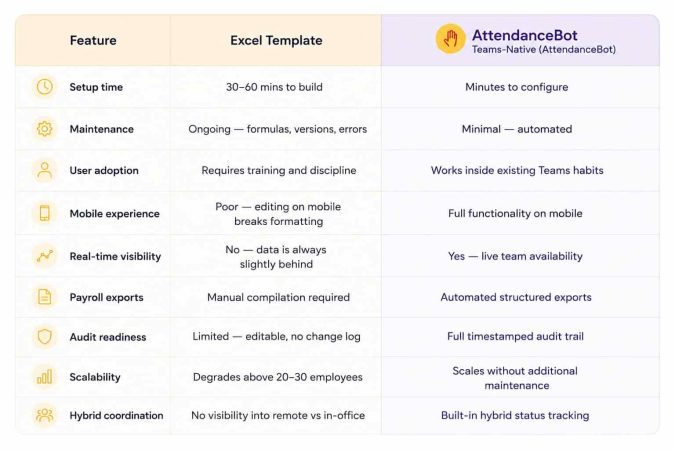
Excel Attendance Tracker vs Teams-Native Automation
| Excel Template | Teams-Native (AttendanceBot) | |
| Setup time | 30–60 mins to build | Minutes to configure |
| Maintenance | Ongoing — formulas, versions, errors | Minimal — automated |
| User adoption | Requires training and discipline | Works inside existing Teams habits |
| Mobile experience | Poor — editing on mobile breaks formatting | Full functionality on mobile |
| Real-time visibility | No — data is always slightly behind | Yes — live team availability |
| Payroll exports | Manual compilation required | Automated structured exports |
| Audit readiness | Limited — editable, no change log | Full timestamped audit trail |
| Scalability | Degrades above 20–30 employees | Scales without additional maintenance |
| Hybrid coordination | No visibility into remote vs in-office | Built-in hybrid status tracking |
When Companies Usually Outgrow Excel
The shift away from spreadsheet-based attendance isn’t a planning decision for most teams. It happens in response to a specific operational breaking point.
The most common trigger is hybrid work. When employees split time between office and remote, attendance tracking needs to capture location context — not just presence or absence. Excel has no native way to do this.
The second most common trigger is team size. Around 20–25 employees, the shared spreadsheet starts requiring dedicated maintenance time. Someone has to own the file, protect the formulas, and reconcile conflicts before each payroll run. That person is usually the office manager or HR admin — the people least available to do unpaid spreadsheet archaeology.
Other triggers include payroll system integration requirements, management requests for real-time visibility, and the first time a significant payroll error is traced back to a formula that someone accidentally deleted three weeks earlier.
You can read more about recognizing when it’s time to move from manual to automated systems in our guide to modern attendance tracking software.
The Future of Attendance Tracking Is Embedded Workflows
Microsoft Teams has become the operational layer of work for millions of organizations — the place where decisions get made, updates get shared, and coordination happens. The most effective operational tools in 2026 are the ones that work inside that layer rather than asking employees to step outside it.
Attendance tracking that lives in Teams is invisible in the best possible sense. Employees log time through the same interface they use for everything else. Managers see what they need without pulling reports. Finance teams receive clean, structured data before payroll runs. Nobody maintains a spreadsheet.
That’s not a distant future state. For teams already on Microsoft Teams, it’s a configuration change away.
People Also Ask
Can you track employee attendance directly in Microsoft Teams?
Yes. With a Teams-native tool like AttendanceBot, employees log attendance by sending simple messages — in, out, break, or leave — directly inside Microsoft Teams. Attendance records are created automatically, managers see real-time team availability in Teams, and payroll-ready exports are generated without any spreadsheet maintenance. No separate application or portal is required.
Why do shared Excel attendance trackers fail?
Shared Excel attendance spreadsheets fail primarily due to SharePoint co-authoring conflicts — when multiple employees edit the same file simultaneously, formulas break, formatting gets stripped, and version conflicts create data integrity problems. The deeper issue is that Excel requires ongoing maintenance that scales poorly: every formula, pivot table, and protected cell needs to be manually managed as the team grows.
What is the best alternative to Excel attendance sheets?
For teams using Microsoft Teams or Slack, the most practical alternative is a Teams-native attendance tool that lets employees log time through a message in their existing workspace. This eliminates the context switching, formula maintenance, and sync conflicts that make Excel attendance trackers unsustainable for hybrid teams above 20 employees. AttendanceBot is purpose-built for this workflow.
How do companies automate attendance tracking?
Companies automate attendance tracking by replacing manual spreadsheet entry with tools that capture attendance data automatically — through Teams or Slack messages, scheduled check-ins, or shift clock-ins — and generate structured reports without manual compilation. The most effective implementations work inside existing communication tools so employees don’t need to change their daily workflow to participate.
Can attendance data from Teams be exported for payroll?
Yes. Teams-native attendance tools like AttendanceBot generate payroll-ready exports — hours worked, overtime, approved leave by type — in structured formats that feed directly into payroll systems like Gusto, ADP, or QuickBooks Payroll. This replaces the manual compilation step that typically delays payroll processing when attendance data lives in a spreadsheet.